Enrollment is the process of registering biometric data, both for fingerprint and facial recognition, for the owner and secondary users of the Biofire Smart Gun. Each enrolled user's biometric information is securely stored on the Smart Gun, allowing enrolled users to arm and operate the Smart Gun.
The Dock is required to be onboarded and connected to the Smart Gun before beginning the enrollment process. Biofire recommends keeping the Dock plugged into wall power during the enrollment process. Please refer to the Dock Onboarding article for instructions on how to complete this step.
Owner Enrollment
Enroll immediately or as soon as possible after the Smart Gun is received. Immediate enrollment is encouraged as the first person to enroll is recognized by the Smart Gun as the owner, with full administrative control over adding other users and managing updates.

Enrollment upon receiving the Smart Gun is important. Contact Biofire customer support at [email protected] if there are issues that prevent the intended owner from enrollment, and do not proceed with enrolling a user that is not intended to be the owner.
The owner holds full administrative control over the Smart Gun system, and is the first person to enroll.
Only the owner can:
- Add and remove secondary users
- Modify system settings
- Apply software updates
- View maintenance records
- Perform a factory reset
Please refer to the Smart Gun Owner and Users article for more information.
enrollment Preparation
Handle your Smart Gun safely and responsibly at all times. Failure to follow proper firearm safety practices can lead to injury, death, and/or damage.
- Keep the muzzle of your Smart Gun pointed in a safe direction at all times.
- Keep your finger off the trigger of your Smart Gun until ready to fire.
- Only point the Smart Gun at intended targets, and always know your target and what lies beyond your target.
- Always treat your Smart Gun as if it is loaded, even after clearing it.
- Make sure your Smart Gun is unloaded and clear before any cleaning or service and always wear eye protection when cleaning or servicing your Smart Gun.
- Always read and follow the Product Manual.
Time Required
The owner enrollment process typically takes 10–15 minutes for full enrollment of the fingerprint and facial biometrics. Taking adequate time during enrollment supports higher-quality biometric data, which can contribute to more reliable authentication during use.
Pre-Enrollment Safety Verification
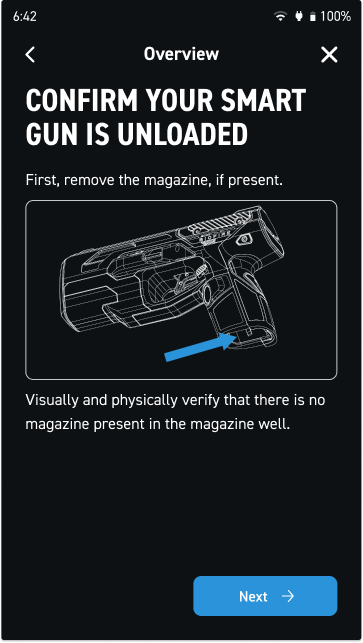
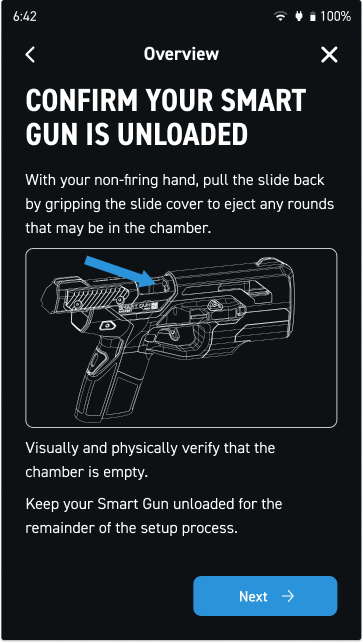
Confirm the Smart Gun is unloaded before beginning enrollment:
- Check that no magazine is inserted
- Use the magazine release to remove the magazine if it is present
- Physically and visually inspect the magazine well
- Rack the slide back and check the chamber
- Return the slide to battery
Privacy and Safety Information
The Dock will display several screens during the enrollment process including:
- Privacy settings and data protection information
- Reminder to read the Product Manual
- Important safety warnings
Each screen contains important information for safe and proper use of the Smart Gun. Review each screen carefully before proceeding.
All personal information collected is subject to Biofire's Privacy Policy available at smartgun.com/legal/privacy-policy
Naming a User Profile
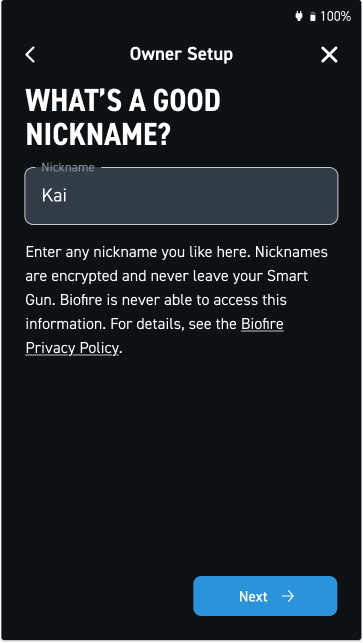
The Dock will prompt users to enter a nickname for the user profile during enrollment. This helps identify enrolled users when managing the system through the Dock, and does not need to be the actual name of the user.
Tips:
- Use first names or nicknames for easy identification
- Keep names simple and clear
- The name is only visible on the Dock and is not transmitted or stored elsewhere
Grip Fit
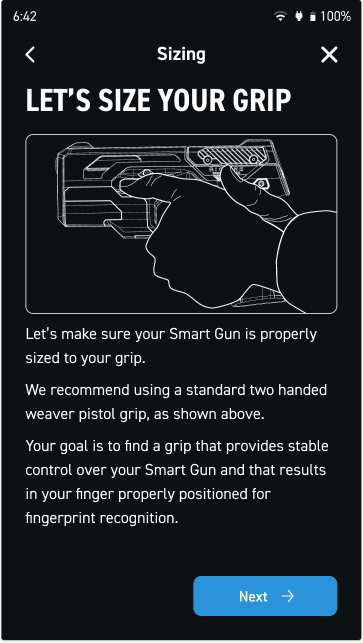
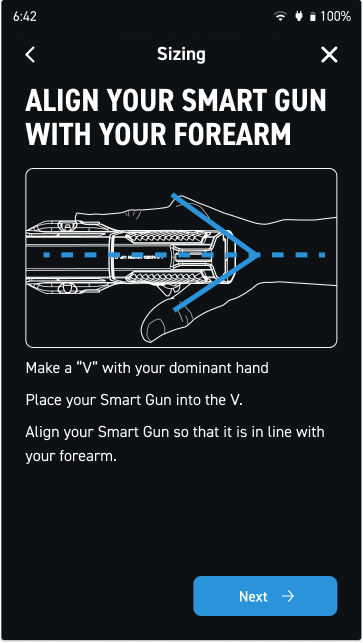
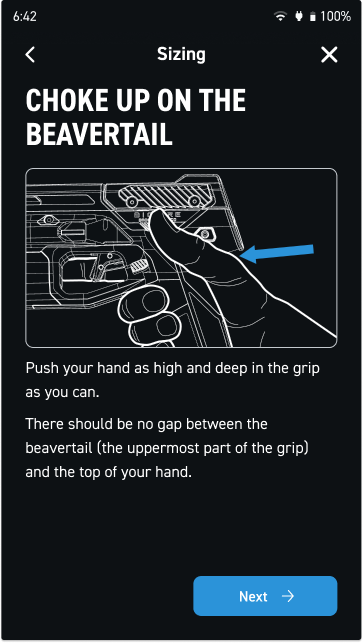
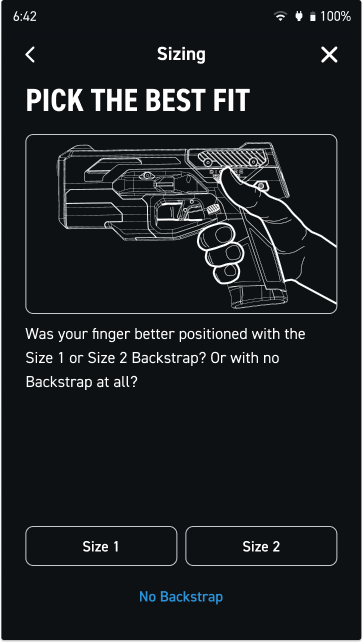
Verify that the Smart Gun fits the user's hand properly before enrolling fingerprints. Proper grip fit is important for reliable fingerprint authentication.
How to Check:
- Pick up the Smart Gun in a shooting stance
- Check where the user's middle finger naturally lands
- The user's middle finger should rest comfortably on the fingerprint sensor
Grip Adjustment
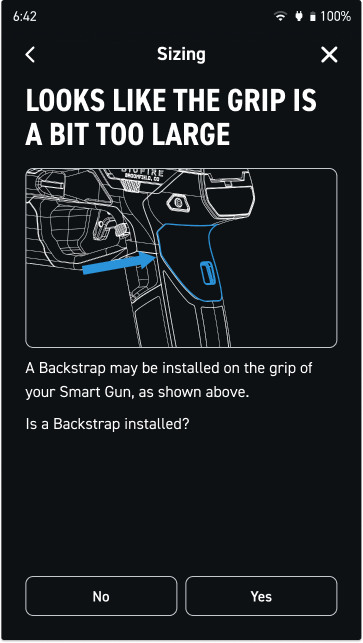
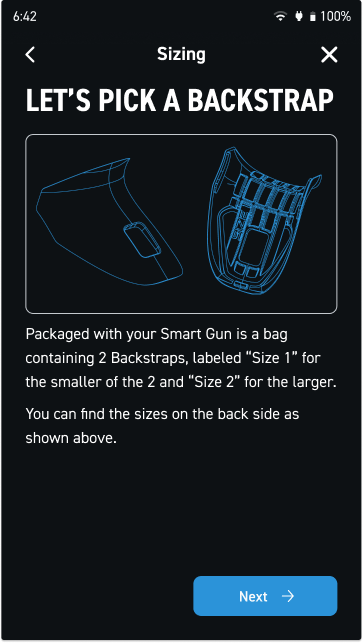
The Dock will guide users through adjusting grip using the included backstraps. Each Smart Gun includes multiple backstrap sizes to accommodate different hand sizes. Users can swap these out until they find the best fit.
Please refer to the Gripping the Smart Gun article for detailed guidance on proper hand placement and grip adjustment.
Biometric Enrollment Process
Enrollment consists of two parts, completed in the following sequence:
- Fingerprint Enrollment
Registers the user's fingerprint for tactile authentication
- Facial Recognition Enrollment
Registers the user's facial features for visual authentication
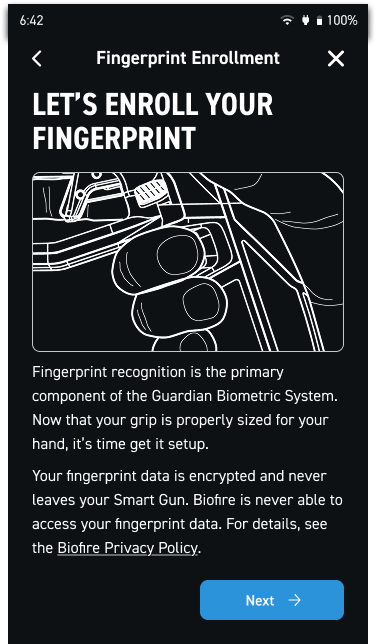
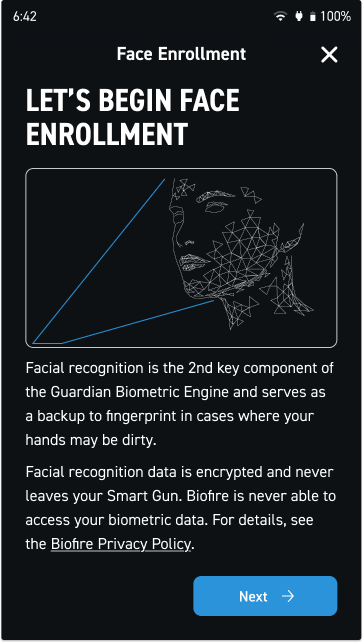
Enrollment of both biometric methods are required for each user. During use, only one method is required to arm the Smart Gun, both are not needed simultaneously.
Please refer to the Fingerprint Biometric Enrollment and Facial Biometric Enrollment articles for step-by-step instructions on these steps.
Enrollment Process
The Dock will guide users through each step using clear on-screen instructions. Follow the prompts carefully and take enough time to ensure high-quality captures.
- Follow all Dock instructions precisely
- Take adequate time with each step to support high-quality biometric captures
- Simply try again if a capture fails
Please refer to page 14 of your Product Manual for detailed enrollment instructions.
Post-Enrollment
Biometric data is securely stored on the Smart Gun after enrollment is complete, and the Smart Gun is ready for use. Enrolled users can now pick up the firearm and authenticate for use using either fingerprint or facial recognition.