Facial enrollment registers a user's unique facial biometrics to a specific Biofire Smart Gun, allowing visual authentication when the firearm is picked up. High-quality facial enrollment ensures fast and reliable authentication even in scenarios where fingerprint authentication is less ideal.

Handle your Smart Gun safely and responsibly at all times. Failure to follow proper firearm safety practices can lead to injury, death, and/or damage.
- Keep the muzzle of your Smart Gun pointed in a safe direction at all times.
- Keep your finger off the trigger of your Smart Gun until ready to fire.
- Only point the Smart Gun at intended targets, and always know your target and what lies beyond your target.
- Always treat your Smart Gun as if it is loaded, even after clearing it.
- Make sure your Smart Gun is unloaded and clear before any cleaning or service and always wear eye protection when cleaning or servicing your Smart Gun.
- Always read and follow the Product Manual.
Facial Recognition System
Facial recognition enrollment registers user's facial features with the Biofire Smart Gun, allowing visual authentication when the firearm is picked up. The Smart Gun stores biometric data exclusively on the Smart Gun in fully encrypted form. Enrolled biometrics are secure, even from access by Biofire.
The facial recognition camera is integrated into the Guardian Biometric Engine and activates automatically when the presence sensors detect the firearm has been picked up. The system scans for a live, recognized face in the shooter's natural field of view and, if validated, unlocks the Smart Gun.
Facial recognition works in parallel with fingerprint authentication and whichever system recognizes an authorized user first unlocks the firearm.
Accurate and high-quality enrollment is important, as enrollment quality directly influences the effectiveness of the Guardian Biometric Engine, so Biofire recommends that users take their time and follow all guidelines in the enrollment process.
All personal information collected is subject to Biofire's Privacy Policy available at smartgun.com/legal/privacy-policy
Before enrollment
Plug the Dock in to wall power during the enrollment process to ensure there is no interruption in the enrollment. Please refer to the Dock Onboarding article if the Dock has not been onboarded.
Enrollment preparation
Proper Position
Facial enrollment works best when holding the Smart Gun in a normal ready-to-fire stance.
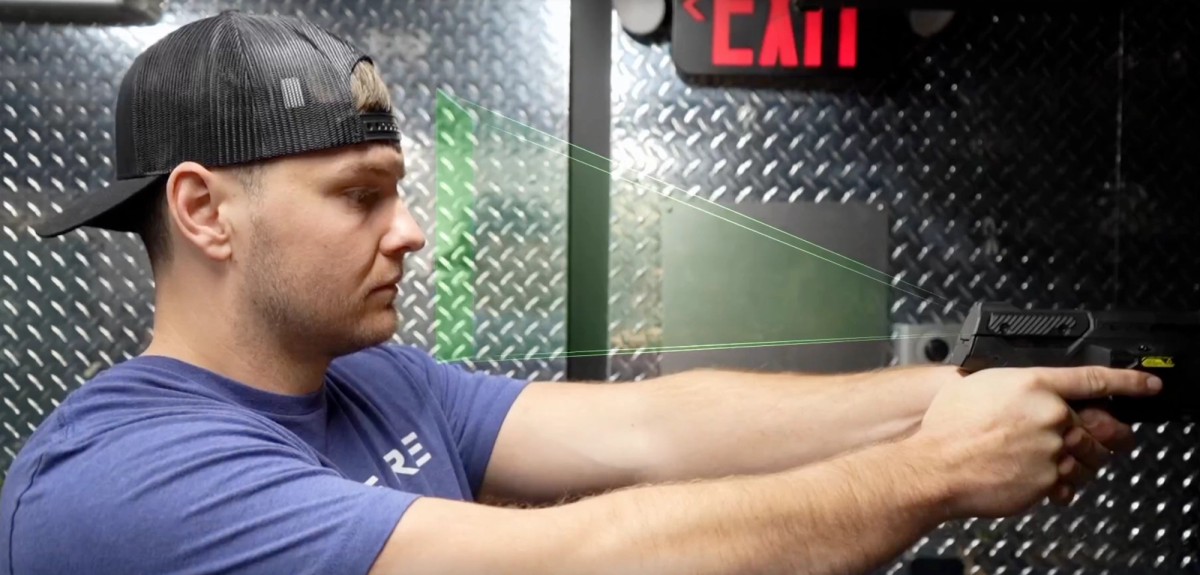
Recognize this angle and position:
- Stand or sit in a comfortable shooting stance
- Hold the Smart Gun as if presenting the Smart Gun on target
- Look down the sights, presenting the user’s face squarely to the rear of the Smart Gun so that the facial recognition system has a clear, unobstructed view of the face.
Environmental Setup
Choose a well-lit location for enrollment:
- Ensure the enrolling user's face is illuminated from the front
- Avoid strong backlighting (like sunlight directly behind the enrolling user)
- Indoor lighting or natural diffused light works well
- Avoid shadows across the face
Ensure that your Dock is plugged into wall power before beginning the enrollment process.
Wearables
Enrollment is possible while wearing:
- Glasses (prescription or reading)
- Sunglasses (though clear lenses are better for enrollment)
- Hats or caps
- Most everyday accessories
The system is designed to recognize enrolled users in various conditions, including common wearables.
Avoid Obstructions
Ensure there's a clear outline of head and facial features:
- Pull back hair that might cover significant portions of the face
- Remove anything that completely obscures facial structure
The Enrollment Process
Mimic Real Use
Hold the Smart Gun in a natural shooting stance:
- Arms extended at shoulder level or in ready position
- Look down the sights, presenting the face squarely to the rear of the Smart Gun so that the facial recognition system has a clear, unobstructed view of the face
- Keep both eyes open and looking at the Rear Display
This position allows the camera to capture the enrolling user's face from the angle the camera will see during actual use.
Hold Position Steady
Maintain position steadily until a prompt on the Dock requests a change in head position or indicates the enrollment was successful. The system needs time to analyze and record the enrolling user's facial features from this angle.
Follow Movement Prompts
The Dock will guide enrolling users through the facial enrollment process using audio instructions to adjust positioning. Audio guidance can be muted, in which case the Dock screen will provide visual instructions for how to complete enrollment.
Enrolling users may be prompted to:
- Tilt head slightly left or right
- Raise or lower head position slightly
- Adjust distance from the camera
Make Movements Slowly and Deliberately
- Small, controlled adjustments (not extreme movements)
- Move gradually, not quickly or jerkily
- Maintain shooting grip and stance throughout
Fast or sudden movements can interrupt the capture process.
Post-Enrollment
The system now has comprehensive data to recognize the enrolled user's face when they pick up the Smart Gun.
Please refer to page 15 of the Product Manual for more information on the enrollment process.
Tips for Successful Enrollment
Be Patient
During facial enrollment, take your time and follow the Dock's prompts slowly and intentionally. If the Dock prompts you to turn your head in a direction, make a small, gentle adjustment while continuing to look down the sights - the prompt guiding you to help center your face, not asking you to look sharply in that direction. This extended time ensures high-quality data that will serve users reliably for years.
Stay Steady
Minimize movement once in position for a capture during enrollment:
- Keep head steady
- Maintain consistent distance from the camera
- Avoid fidgeting or shifting stance
- Breathe normally but keep torso stable
Lighting Conditions
Good lighting improves enrollment quality:
- Indoor enrollment using consistent lighting produces the highest quality
- Biofire recommends enrolling in high quality lighting, even if the Smart Gun will be used outside or in less optimal lighting scenarios in the future
- Face a light source when possible
- Avoid harsh shadows on the face
- For outdoor enrollment, try to use overcast conditions or shaded areas
Natural Expression
Keep a neutral, relaxed facial expression during enrollment:
- Keep both eyes open naturally
- Avoid smiling exaggeratedly or making faces
Troubleshooting
The system isn't recognizing my face during enrollment:
- Ensure adequate front lighting on your face
- If authentication isn't reliably working through facial recognition, try to re-enroll biometrics
- Avoid strong backlighting
- Keep your head steady during captures
- Make sure your face is clearly visible (not obscured by clothing)
Enrollment keeps failing or restarting:
- Slow down your movements when prompted to adjust position
- Maintain a consistent distance from the camera
- Keep your shooting stance stable throughout
- Ensure you're holding the position long enough (10–15 seconds), or until a Dock prompt requests a position adjustment
My face isn't being captured at the right angle:
- Check that your face is presented squarely to the rear of your Smart Gun
- Adjust your arm position to bring the firearm to eye level
- Maintain your natural shooting stance
Lighting issues:
- Keep your face and the Smart Gun in the same lighting. Avoid shade on your face with bright sunlight on the Smart Gun
- Move to a different location with better lighting
- Face toward a light source
- Avoid enrollment in very bright outdoor sunlight
- Try indoor enrollment using consistent overhead or ambient lighting