• Technology
  • Specifications
  • Support
    • Contact Us
    • Careers
    • Explore
    • FAQ
Build YoursBuild Yours

Support

Loading search…

Loading support navigation…

Smart Gun Interface

Home|Operation & Use|Smart Gun Interface & Indicators

Smart Gun Interface

The Smart Gun uses a minimalistic graphical user interface to communicate important information about the status of the Smart Gun, such as authentication status, alert indicators or low battery warnings. The user interface is designed for the user to have a clear understanding of what is going on with their Smart Gun in real time with minimal distractions.

Please refer to your Product Manual and The Smart Gun System article for complete information on the Smart Gun system, status displays, and troubleshooting.

Smart Gun Communication

The Smart Gun provides key information about:

  • Whether the Smart Gun is on or off (please refer to the Smart Gun States article)
  • Authentication status (armed or disarmed)
  • Battery charge level
  • System notices, warnings, and errors

Two primary interface locations on the firearm display this information.

Primary Interfaces

Front Sight

The front sight is located on the flyover cover at the front of the Smart Gun and has an indicator that shows the core operational status of the Smart Gun at a glance. The front sight provides a quick visual reference for the Smart Gun's operational status.
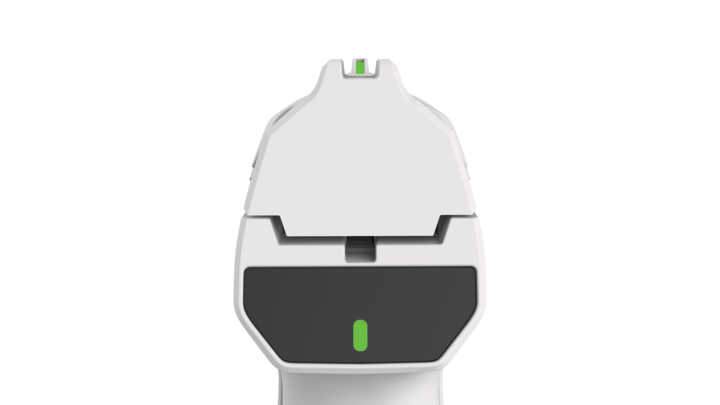
Rear Display

The rear display provides comprehensive status information through three distinct indicator zones:

  • Status Indicator (Center)

Mirrors the front sight indicator to show system state and authentication status

  • Alert Indicator (Right)

Displays notices, warnings, or critical errors

  • Battery Indicator (Left)

Shows the battery's charge status. Note that this will only be on if the battery reaches 50% or below
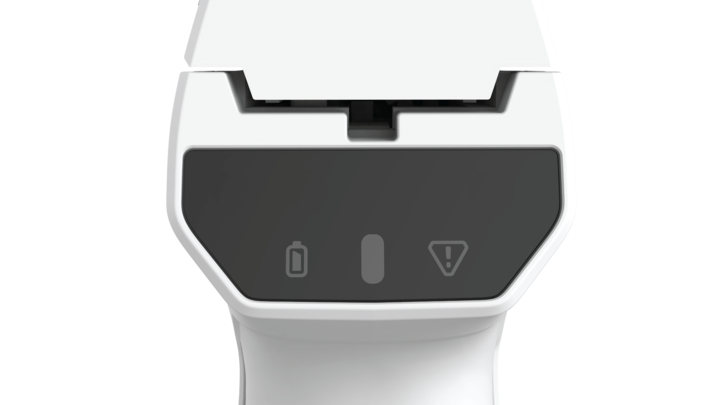
These indicators provide a combined view of the Smart Gun's operational condition.

Always make sure that users understand the functionality of the firearm before handling or using the Smart Gun.

Please refer to the Smart Gun Indicators and Smart Gun States articles for more information about what each indicator represents.

Last updated on June 9, 2026

Don't see an answer to your question?
Email us: [email protected]

Share on
Build YoursSign Up

Company

  • Support
  • Explore
  • Careers

Connect

  • Facebook
  • Instagram
  • Youtube

© 2026 Biofire. All rights reserved. Smart Gun, Biofire, the Biofire wordmark, and the Biofire logo are trademarks of Biofire in the United States and/or other countries. All images and renders on this page represent pre-production models and final Biofire products may differ from the images shown. All claims are subject to change and qualification. Final product specifications will be provided at or prior to final purchase. Privacy Policy

Support

Order Management
Reservation and Order Details
Reservation Details and ConfirmationPost-Order ExpectationsFinalizing Your Smart Gun Order
Account & Payments
Updating Account Information
Builds & Transfers
Smart Gun CustomizationEditing Your Smart Gun BuildSmart Gun SizingGrip Sizing TemplateFederal Firearms Licenses (FFL) Overview Federal and Local Firearms Transfer Process (FFL)
Setup & Enrollment
Understanding the Smart Gun System
The Smart Gun SystemDock OnboardingGripping the Smart Gun
Smart Gun Enrollment
The Smart Gun BiometricsSmart Gun Enrollment Fingerprint Biometric EnrollmentFacial Biometric Enrollment
User Management
Smart Gun Owner and UsersEnrolling Secondary Users
Operation & Use
Smart Gun Interface & Indicators
Smart Gun InterfaceSmart Gun Indicators Loaded Chamber Indicator
Smart Gun States
Smart Gun States
Care & Maintenance
Smart Gun Maintenance
Smart Gun Storage
Smart Gun Storage