The Biofire Smart Gun uses visual indicators to communicate status of your system in real time. Thoroughly reviewing this section ensures that you can confidently understand the condition and status of your Smart Gun at any given time.

Handle your Smart Gun safely and responsibly at all times. Failure to follow proper firearm safety practices can lead to injury, death, and/or damage.
- Keep the muzzle of your Smart Gun pointed in a safe direction at all times.
- Keep your finger off the trigger of your Smart Gun until ready to fire.
- Only point the Smart Gun at intended targets, and always know your target and what lies beyond your target.
- Always treat your Smart Gun as if it is loaded, even after clearing it.
- Make sure your Smart Gun is unloaded and clear before any cleaning or service and always wear eye protection when cleaning or servicing your Smart Gun.
- Always read and follow the Product Manual.
Status Indicator
Status indications will appear on two status indicators: the front sight and the center of the rear display. These indicators communicate the status of the Smart Gun. The Guardian Biometric Engine is equipped with integrated sensors that automatically detect presence when the Smart Gun is picked up.
Firearm States
- No Light: Off
The Smart Gun is off and disarmed
- White Light: Authenticating/Disarmed
The Smart Gun is searching for authentication via fingerprint or facial recognition
- Green Light: Armed
The Smart Gun has been authenticated and is ready to fire. The Smart Gun remains in this state as long as presence is detected, and returns to an unarmed state when presence is no longer sensed
- Red Light: Factory Reset
The Smart Gun has no enrolled users, and can be enrolled by anyone as the Owner
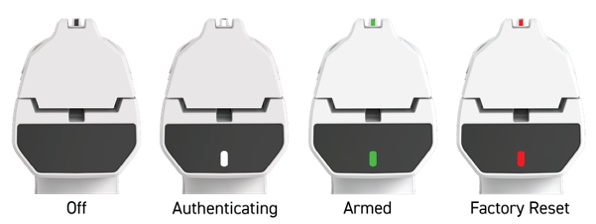
The Smart Gun automatically returns to a disarmed state when grip is released. Please refer to the Smart Gun States article for more information.
Approaching a Limit
While it is armed, the Smart Gun displays a series of yellow flashes interrupting the green armed status to alert the user when temperature or battery levels are nearing operational thresholds.
The number of flashes increases as the Smart Gun nears the limit:
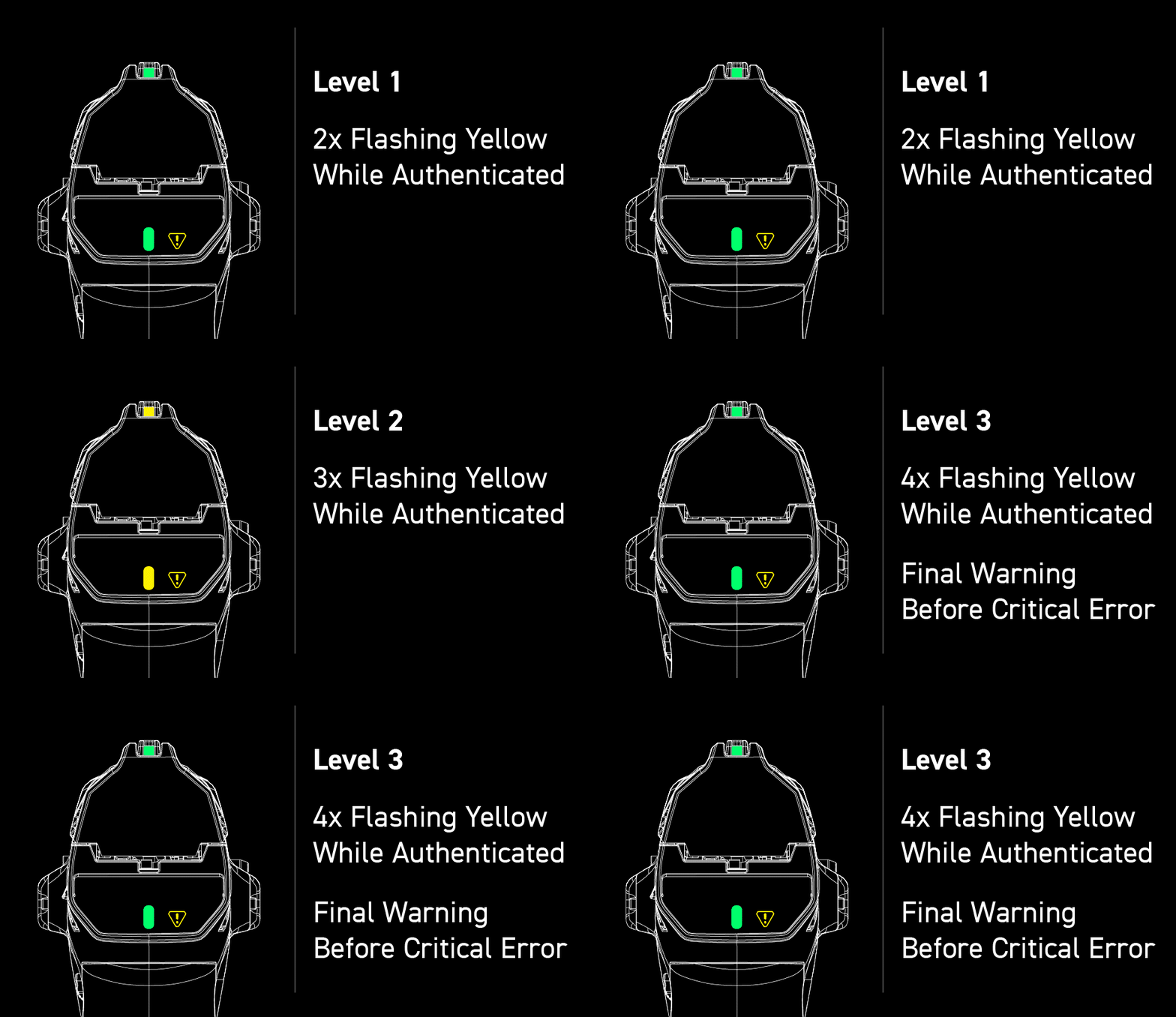
- Level 1
Two yellow flashes per cycle
- Level 2
Three yellow flashes per cycle
- Level 3
Four yellow flashes per cycle (critical error imminent)

Continued operation while approaching a limit is discouraged. Plug the Smart Gun into the Dock for detailed information on the cause of the warning and how to resolve it.
Battery Indicator
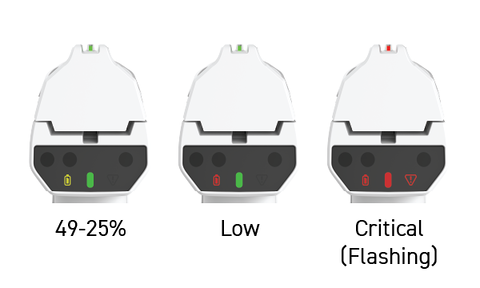
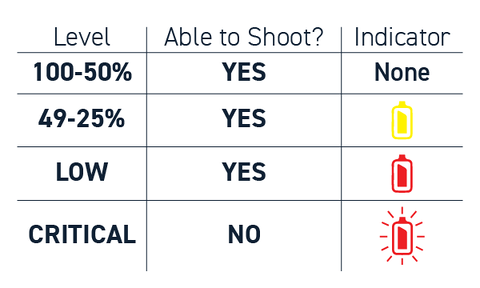
The battery indicator on the left side of the rear display shows the Smart Gun's current charge level:
- No Icon
Battery level at or above 50%
- Yellow
49-25% charge remaining
- Red
Low battery
- Flashing Red
Critically low battery - recharge immediately
Plug in the Smart Gun to charge. When connected to power, the battery indicator pulses slowly to show charging. The pulse stops after 10 seconds, but charging continues.
Alert Indicator
The alert indicator on the right side of the rear display notifies users of system conditions that require attention:
- Blue: Notice
Informational alert, Smart Gun remains fully operational
- Yellow: Warning
System is experiencing a non-critical issue, Smart Gun remains operational
- Flashing Red: Critical Error
The Smart Gun is experiencing a critical error and is disarmed and unable to fire
Both the alert indicator and battery indicator will flash red if the critical error is due to low battery
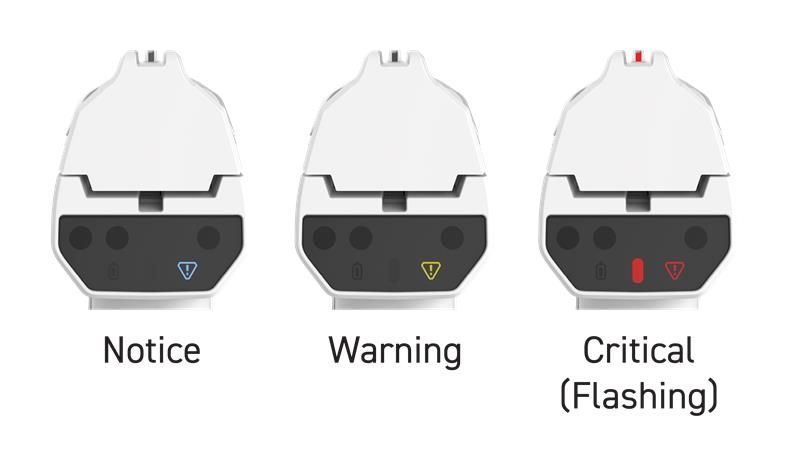
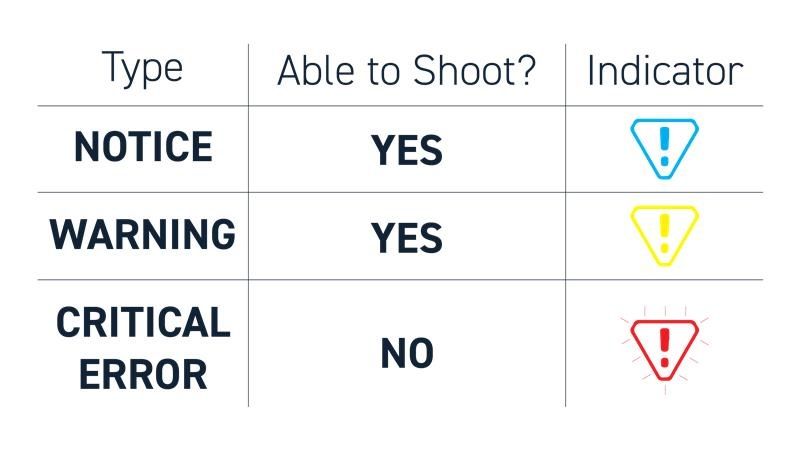
Connect the Smart Gun to the Dock for detailed information about the alert.
Software Updates
Both the front sight and rear display will blink red while installing a software update on the Smart Gun to indicate the update is in progress.